
User Guide
This page is for operators using the dashboard day to day.
Interface Map
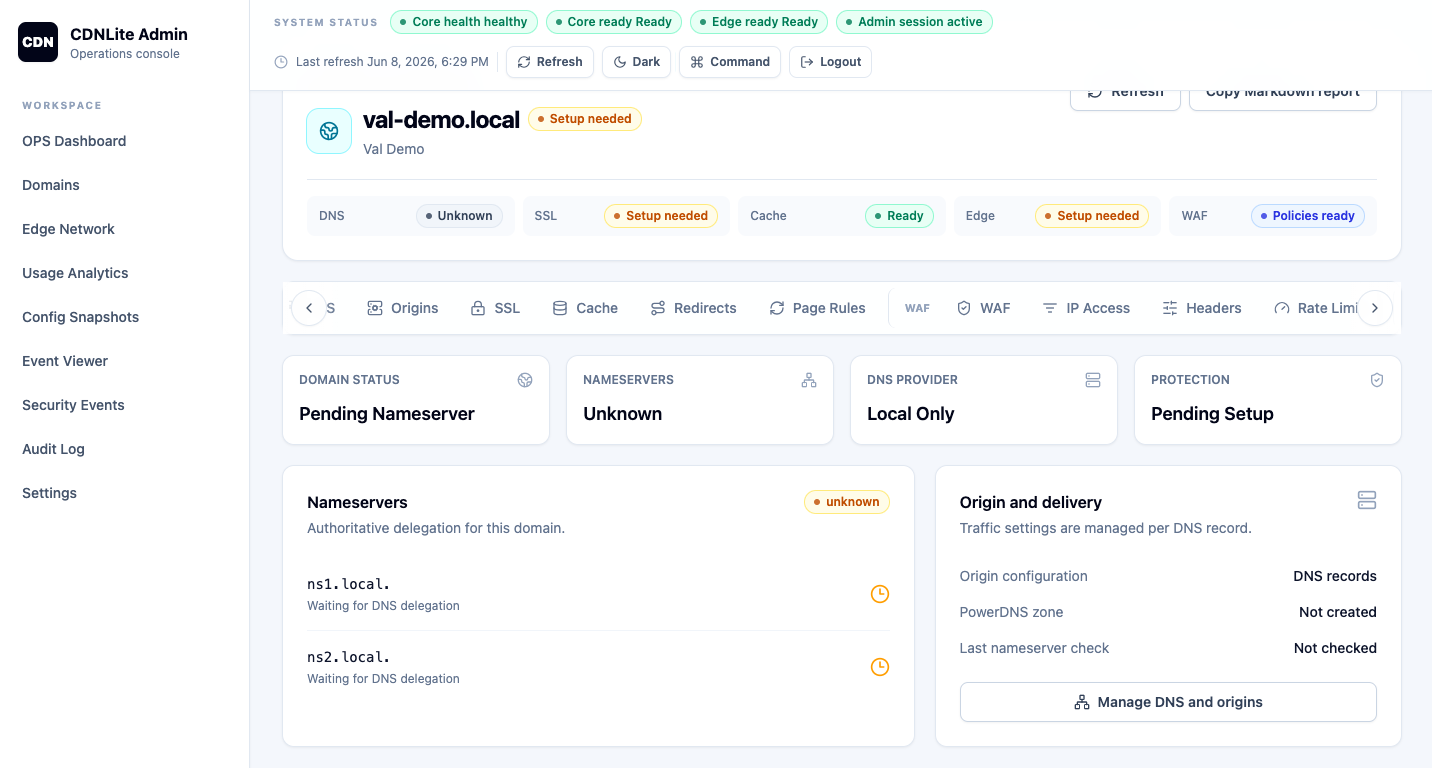
Dashboard
|-- Overview: readiness, warning cards, aggregate metrics
|-- Domains: domain list and domain detail tabs
|-- Edge Network: edge nodes, pools, DNS, anycast settings
|-- Usage Analytics: traffic, cache, and bandwidth views
|-- Config Snapshots: versions, diffs, rebuild, rollback
|-- Event Viewer: diagnostics and runtime event search
|-- Security Events: WAF/rate-limit/IP/security decisions
|-- Audit Log: admin and system changes
|-- Settings: platform, PowerDNS, edge DNS, and runtime settings
Login
- Open
http://localhost:8082or the deployed dashboard URL. - Sign in with an admin account.
- Confirm the top status bar shows reachable core and edge services.
- If status is unknown, open
Settingsand verify the configured core/edge browser URLs.
Local bootstrap credentials are admin / admin; replace them before any shared deployment.
Add A Domain
- Open
Domains. - Choose add domain.
- Enter a display name and hostname such as
example.com. - Save the domain.
- Review the nameserver instructions.
- Update registrar delegation when using nameserver-first onboarding.
- Use verify nameservers.
- Activate the domain after delegation checks pass, or use override only for a controlled test.
Tip: keep origin configuration separate from domain creation. Add origins after the zone exists so health checks and readiness warnings can point to the right resource.
Configure DNS
- Open the domain detail page.
- Select
DNS. - Add records with type, name, content, TTL, and proxy status.
- Use DNS-only records for mail, verification, and services that should not pass through the CDN.
- Use proxied records for HTTP/HTTPS traffic that should route to edge nodes.
- Preview routing when Geo DNS or anycast policy is enabled.
Example records:
| Name | Type | Content | Proxy |
|---|---|---|---|
@ | A | 203.0.113.10 | On |
www | CNAME | example.com | On |
_acme-challenge | TXT | ACME token | Off |
mail | A | Mail server IP | Off |
Configure Origins
- Open
Origins. - Add the primary origin host, scheme, and enabled state.
- Add backup origins for failover.
- Run manual health checks after changes.
- Watch readiness warnings for failed or stale origin checks.
Best practice: use hostnames instead of direct IPs when your origin platform rotates infrastructure, but pin IPs for controlled internal origins.
Configure Traffic Rules
Domain tabs expose:
| Tab | Typical task |
|---|---|
Cache | Default TTL, query-string behavior, cache rules, purge requests. |
Redirects | URL forwarding, import/export, rule tests. |
Page Rules | Match URL patterns and apply behavior. |
WAF | Block/challenge/log request patterns. |
Rate Limits | Limit noisy clients by IP or other keys. |
Headers | Add response headers such as HSTS or CSP. |
IP Rules | Allow or block CIDR ranges. |
SSL | Request, renew, check, or import certificates. |
Purge Cache
- Open
Cache. - Choose purge scope:
url,prefix,domain, oreverything. - Enter URL/prefix only when the selected scope needs it.
- Submit and check purge request history.
View Analytics
Use Usage Analytics for global views and a domain's Analytics tab for domain-scoped traffic. Buckets support minute, hour, and day.
Common checks:
- Request volume changes after DNS activation.
- Cache hit ratio after rule changes.
- Bandwidth spikes after purge or bypass rules.
- Unknown-domain warnings when edge receives traffic for unconfigured hosts.
Export Reports
The dashboard can export Markdown reports for operational snapshots. Use these for change reviews, incident notes, and handoff summaries.
Shortcuts And Tips
- Use copy buttons for domain IDs, tokens, and diagnostics output.
- Use table horizontal controls when narrow screens hide columns.
- Keep browser dev tools for secondary diagnostics; the dashboard surfaces primary API errors in alerts and field messages.
- Treat edge developer tools as local/private helpers only.